How to Embed a Free English Grammar Quiz on Your Website (WordPress, Google Sites, Moodle)
Step-by-step instructions for adding a free, interactive English grammar quiz to WordPress, Google Sites, Moodle, or any page that accepts HTML. No plugin, no sign-up, no ads.
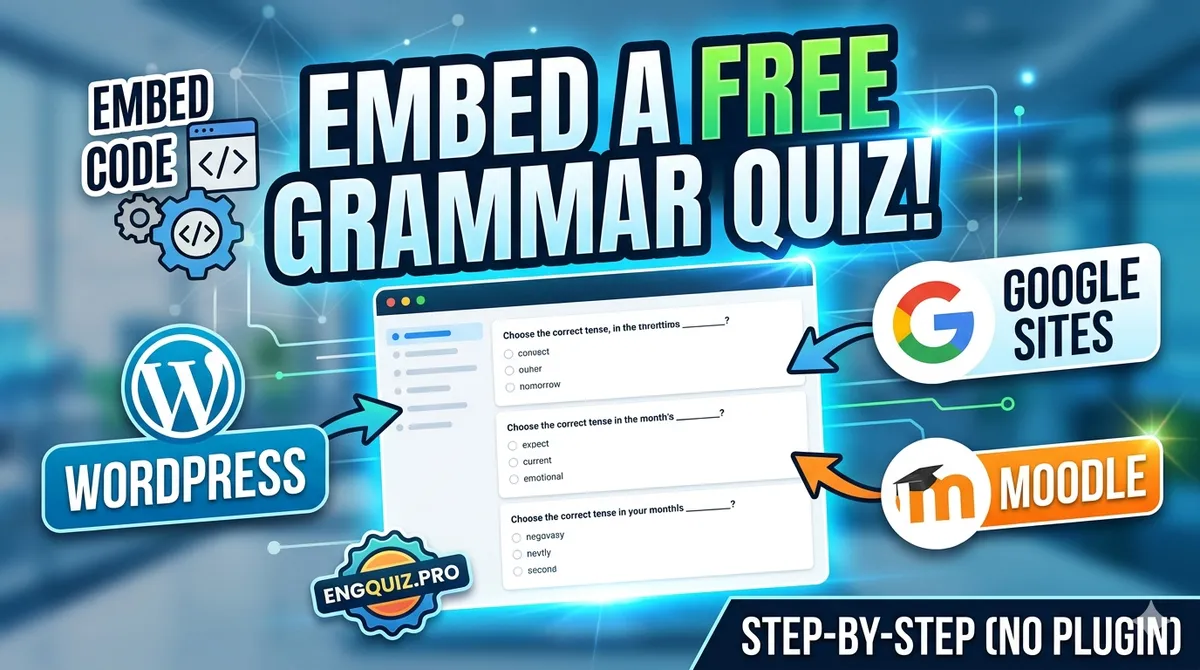
The problem with grammar pages: people read them and leave
If you run a teaching blog, a school website, or a Moodle course, you already know the pattern. You write a careful explanation of the present perfect, a student skims it for forty seconds, nods, and closes the tab. Nothing was practised, so nothing was retained, and your analytics show a bounce.
A grammar page without practice is a piano lesson without a piano. The fix isn't writing a longer explanation; it's putting an instrument on the page. An embedded quiz turns "I read about it" into "I tried it, got two wrong, and saw why," and that's the moment learning actually happens.
This guide shows you how to add a free, interactive English grammar quiz to your own site in under five minutes, on WordPress, Google Sites, Moodle, or anything else that accepts HTML.
What the widget is, and what it never does
The EngQuiz.Pro quiz widget is a small embeddable quiz player. You pick any grammar or vocabulary quiz from the library (A2–C2, CEFR-aligned), choose how many questions to show (3, 5, or 10), and copy one snippet of code.
What you get:
- Completely free. No account, no sign-up, no usage limit.
- No ads, no tracking, no cookies. The embed ships zero analytics and zero web fonts, so it adds nothing to your privacy policy and almost nothing to your page weight.
- Auto-resizing. The quiz sits in a lightweight iframe that reports its own height, so it never gets cut off and never leaves a gap.
- Self-contained. Your visitors answer the questions right on your page, and a small link underneath leads to the full quiz for anyone who wants more.
The embed code: three lines, each with a job
Go to the quiz widget builder, choose a quiz and a question count, and it generates a snippet like this:
<!-- EngQuiz.Pro quiz widget -->
<div class="engquiz-widget" data-quiz="mc-tenses-b2" data-questions="5" data-theme="light"></div>
<a href="https://www.engquiz.pro/grammar/exercises/tenses/mc-tenses-b2">Tenses quiz on EngQuiz.Pro</a>
<script async src="https://www.engquiz.pro/embed/v1.js"></script>
Line by line:
- The
divmarks where the quiz appears.data-quizis the quiz,data-questionsis how many questions to show. - The link stays under the quiz as a small credit line pointing to the full version. It also doubles as a fallback, so if the script ever fails to load your visitors still get a working link instead of an empty box.
- The script finds the
divand replaces it with the quiz iframe.asyncmeans it never blocks your page from rendering.
You don't need to write any of this by hand; the builder fills it in. But knowing what each line does helps when a page builder mangles one of them (see the traps below).
WordPress: use a Custom HTML block
- Edit the post or page where you want the quiz.
- Click + to add a block and choose Custom HTML (type "html" in the search box).
- Paste the snippet from the widget builder.
- Click Preview inside the block to see the quiz render, then Update.
That's it for both the block editor (Gutenberg) and most themes. If you're on the classic editor, switch the editor to the Text tab (not Visual) before pasting, or the Visual tab will escape the code into harmless text.
Note for WordPress.com free plans: custom scripts are only allowed on plans with plugin support (Business and above). On a free WordPress.com site, use the iframe-only version from the "any other platform" section below.
Google Sites: Embed → Embed code
- Open your site in the Google Sites editor.
- In the right-hand panel choose Embed, then the Embed code tab.
- Paste the snippet and click Next → Insert.
- Drag the placeholder to size it; the quiz fills whatever width you give it.
Google Sites runs embed code inside its own sandbox, which is fine; the widget needs nothing from the surrounding page. If you prefer Embed → By URL, you can skip the snippet entirely and paste a direct quiz URL in this shape:
https://www.engquiz.pro/embed/mc-tenses-b2/5
(That's the quiz slug followed by the number of questions, both shown in the builder.)
Moodle: an HTML block or any activity description
- Turn editing on, then Add a block → HTML (or edit any label, page, or activity description).
- In the editor toolbar, click the
</>(HTML source) button. In Atto it's under the expanded toolbar; in TinyMCE it's Tools → Source code. - Paste the snippet and save.
One Moodle-specific caveat: depending on how your site administrator has configured text filtering, Moodle may strip <script> tags for non-admin roles. If the quiz doesn't appear, swap the snippet for the plain iframe version below; iframes survive Moodle's filters.
Any other platform that accepts HTML
Wix, Squarespace, Notion-style site builders, school CMSs: anywhere you can paste HTML, the standard snippet works. Look for an element called Embed code, Custom code, Raw HTML, or similar.
If your platform blocks <script> tags (some do, silently), use the script-free iframe instead:
<iframe
  src="https://www.engquiz.pro/embed/mc-tenses-b2/5"
  style="width:100%; height:560px; border:0;"
  loading="lazy"
  title="English grammar quiz">
</iframe>
The only trade-off: without the script, the iframe can't auto-resize, so set a height that fits your chosen question count (about 560px suits a 5-question quiz; add roughly 80px per extra question).
Where embeds go wrong, and the one-line fixes
Trap: pasting into a visual editor.
The code appears on your page as literal text instead of a quiz.
Fix: paste into the HTML/source view (Custom HTML block, </> button, or "Embed code" element), never the normal text view.
Trap: the platform silently strips the script. The fallback link shows but no quiz appears. Fix: use the plain iframe version above; it needs no script at all.
Trap: forcing a fixed height on the standard snippet. Wrapping the widget in a fixed-height container cuts off the result screen. Fix: let it size itself; the widget reports its own height and the iframe follows.
Trap: an aggressive "consent" or script-blocking plugin.
Some cookie-consent plugins block all third-party scripts until consent.
Fix: whitelist engquiz.pro. The embed sets no cookies and runs no trackers, so there is nothing to consent to.
Before you hit publish
- Preview the page and complete the quiz once yourself. You should reach the score screen without scrolling inside the box.
- Check it on a phone. The widget is responsive, but your page's column width controls how much room it gets.
- Match the quiz level to the page: an A2 explainer deserves an A2 quiz, not a C1 one. The builder shows the CEFR level next to every quiz.
- Pair the quiz with theory. A quiz placed under your own explanation, or next to a reference page like Present Perfect or the definite article, converts far better than a quiz floating alone.
Remember this
Nobody bookmarks an explanation. They bookmark the page where they got 4 out of 5 and want the fifth.
Frequently Asked Questions
Yes. Both have an "Embed code" element that accepts the standard snippet. If a plan restriction blocks scripts, the plain iframe version works everywhere that allows iframes.
No payment, no licence, no attribution requirement. The snippet includes a small link to the full quiz by default, and we'd appreciate you keeping it: it's how other teachers find the tool.
No. The embed loads in a lazy iframe with no ads, no analytics, and no web fonts. The loader script is async, so it never blocks rendering.
No. The widget sets no cookies and sends no analytics. Answers are checked in the visitor's browser and vanish when they leave the page.
New Articles
How to Improve English Reading and Actually Understand It
Why the level of the text you choose matters more than the hours you put in, and five exercises that build reading comprehension.
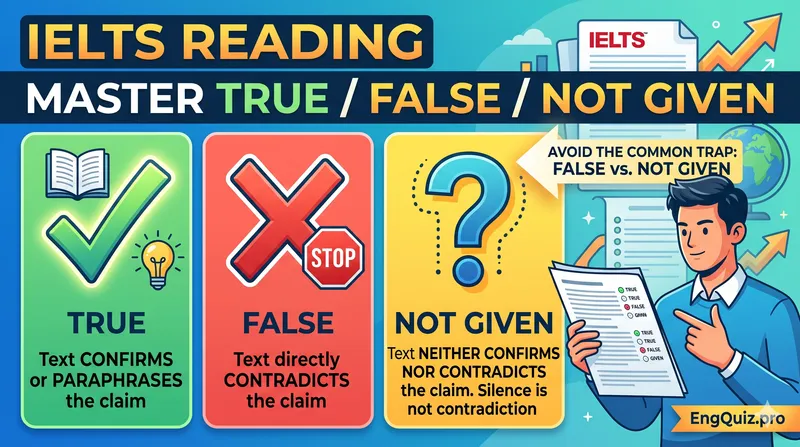
IELTS Reading: How to Master True/False/Not Given
True/False/Not Given is the most-failed IELTS Reading task. Learn the one rule that fixes it, and practise free on real B2/C1 passages with instant feedback.
What Is A1 English Level? Skills, Grammar & First Words
A1 is absolute beginner English at the start of the CEFR scale. Learn what A1 means, the first grammar and words, and how long it takes to reach A2.
Related Articles
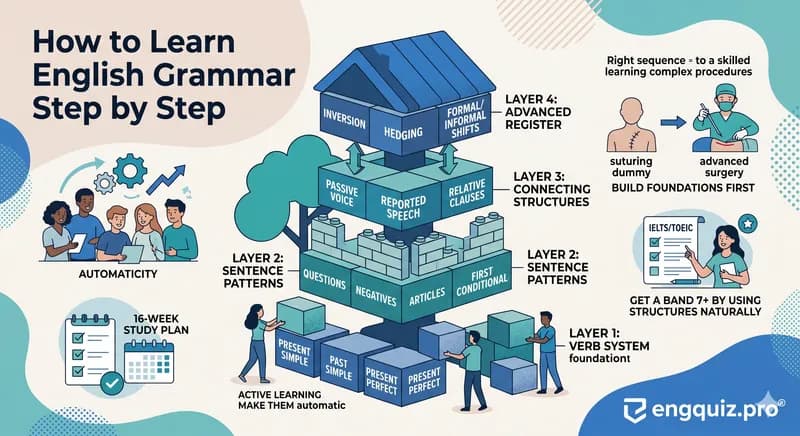
How to Learn English Grammar Step by Step: A 4-Layer Framework
Most learners study English grammar in the wrong order. Here is a four-layer step-by-step framework, with exam-angle advice and exercises to start today.

American vs British English: What Actually Matters for Learners
Spelling, vocabulary, or grammar: which differences between American and British English actually affect your exam score, and what can you safely ignore?

English Grammar Lessons for Adults: 5 Lessons That Make Patterns Stick
Five English grammar lessons for adults: how to use grammar books, the tense system, articles, prepositions, and an error-correction method that helps patterns stick.